Your Claude Code Sessions Need a HUD
Originally published on Medium - read it there ↗
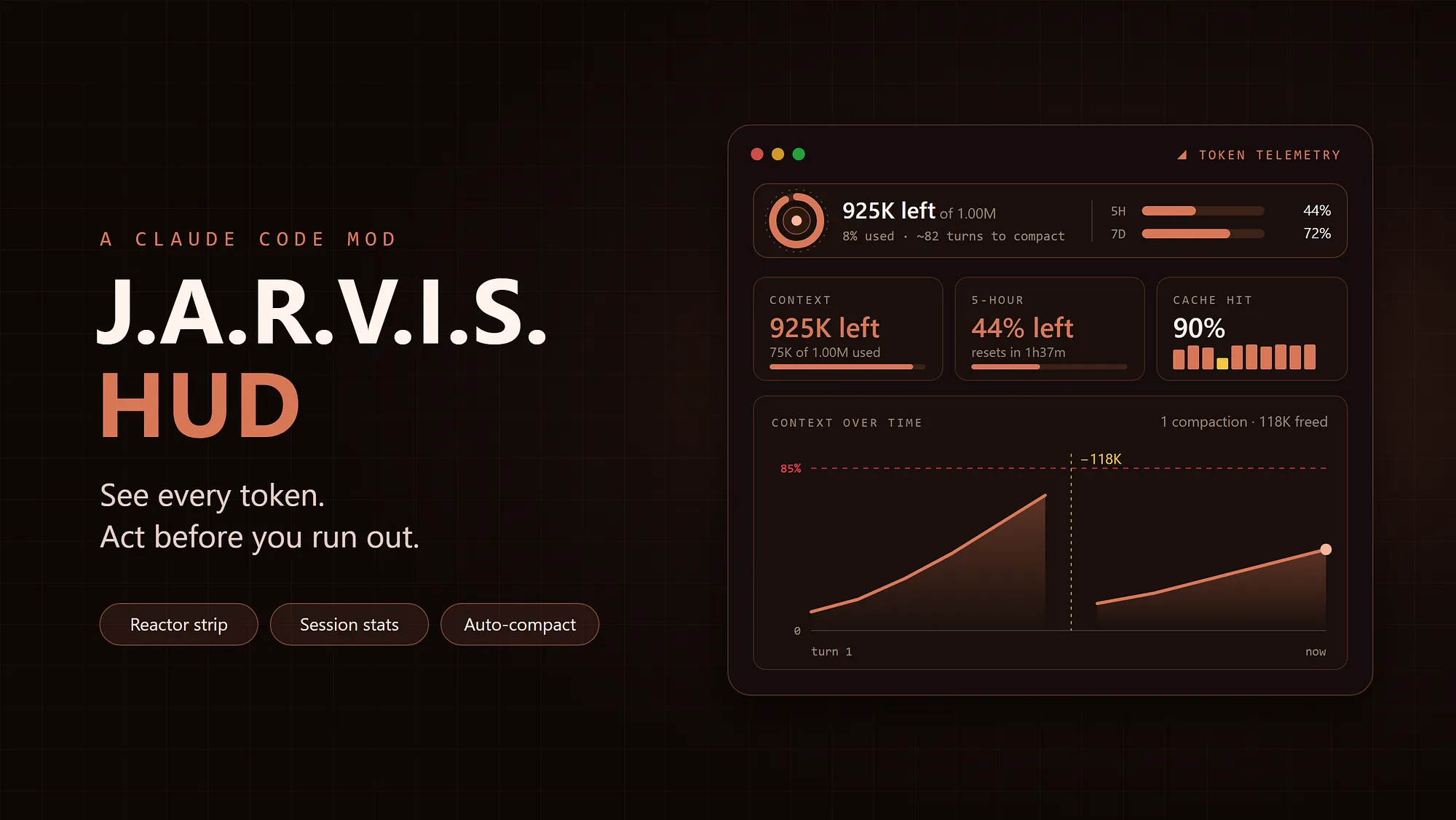
A heads-up display for Claude Code that shows how many tokens you have left, warns you before you run out, and compacts the conversation for you.
If you use Claude Code for long sessions, you know how it goes. You’re deep into a refactor, Claude has finally understood the codebase, and then the context window fills up. Or you hit your 5-hour plan limit in the middle of a task, with no warning.
The information is all there, scattered across /context and /usage. I wanted one place to see it at a glance, like Tony Stark’s suit display. So I built J.A.R.V.I.S. HUD, a mod for Claude Code.
What it is
J.A.R.V.I.S. HUD is a Claude Code plugin. It works in the terminal CLI and in the desktop app’s Code tab. It does three things:
- Shows your remaining context and your plan quotas, all the time.
- Warns you before a limit hits: when context or a quota crosses a threshold, and before a single file read would use a big share of what’s left.
- Acts: once context passes a threshold (85% by default), it compacts the conversation and keeps the parts that matter.
It’s one TypeScript module of about 1,300 lines, plus a test file. It adds no background processes and needs no account, and it makes no network requests.
What it does
1. The band: your reserves at a glance
In the desktop app, the band above your prompt is a graphical reactor strip:
- A mini arc reactor shows the context you have left, with tokens left and a forecast such as “~6 turns to compact”.
- A capsule gauge for each plan quota shows how much is left and when it resets.
- Hover any part for exact numbers, such as “152K of 200K used · auto-compact at 170K”.
- The reactor pulses once you pass 85%, and spins fast while it compacts.
In a terminal, the band is a single line of text instead:
◢ CTX ▰▰▰▰▰▰▱▱▱▱ 48K · 5H ▰▰▰▱▱ 58% ↻2h14m · 7D ▰▰▰▰▱ 81% ↻3d4hFrom left to right:
- CTX: context tokens left before the window is full.
- 5H: how much of your 5-hour plan quota you’ve used, and when it resets.
- 7D: the same for your weekly quota.
The colour shifts from Claude orange to amber at 70% and red at 85%, so you can tell how close you are without reading it. On a narrow window the band drops detail rather than wrapping onto a second line.
2. The HUD pane: your session at a glance
Type /jarvis or click the ◢ icon to open the full display beside your chat. From top to bottom:
- Readout cards: one each for context, the 5-hour quota and the weekly quota. Each card shows a large value (“925K left”, “44% left”), a caption such as “resets in 1h37m”, and a bar.
- Forecast row: your burn rate in tokens per turn, how many turns are left before compaction, and whether the 5-hour quota lasts until it resets.
- Context over time: a line of context used after every turn, with the auto-compact threshold drawn across it. Each compaction gets a marker showing how much it freed, such as “−118K”.
- 5-hour quota pace: your quota use across its window against a dashed even-pace line to the reset. If you’re on track to run out early, a red line shows when.
- Cache hit rate: the share of input served from the prompt cache, with a bar per turn.
- Turn speed: average and slowest turn, and output tokens per second.
- Session: how long it has run, turns taken, and subagents launched.
- Where it went: a donut chart of what’s filling your context, with a tip for the biggest consumer.
- Tools and files by context: the tools and files whose results put the most into your context. It’s the quickest way to spot the one file that keeps getting re-read.
- Controls and log: one-click buttons, each with a hotkey, plus a log of every alert and action.
Every number comes from Claude Code itself: turn timings and token counts (cache reads included) from its turn reports, and compactions as they happen. The one estimate is tool and file size, measured from the text the model actually read at about 4 characters per token. In a terminal, the pane shows the same stats as text, with a sparkline for the timeline.
3. Alerts before you run out
- Toasts at 70, 85 and 95% context, and at 75 and 90% of a plan quota. The critical levels also send a system notification.
- Read guard: before Claude reads a large file, J.A.R.V.I.S. estimates its cost and warns you if it would use a big slice of the remaining context. For example: “Incoming: ~22K tokens from schema.sql, 31% of reserves.”
- Voice (optional): on macOS it can speak alerts aloud using the built-in
sayvoice.
4. It compacts for you
Past 85% context, it waits for the current turn to finish and then compacts the conversation. It doesn’t just summarise everything. It tells Claude to keep the current goal, the decisions made and why, the files touched, open TODOs and unresolved errors, and to drop verbose tool output, abandoned attempts and anything already resolved.
You can run it by hand with /jarvis compact, or change the threshold anywhere from 30% to 98%.
What it looks like in Claude Desktop
J.A.R.V.I.S. lives in the Code tab of the Claude desktop app. It adds two things to the window you already work in, and neither one gets in the way of the chat.
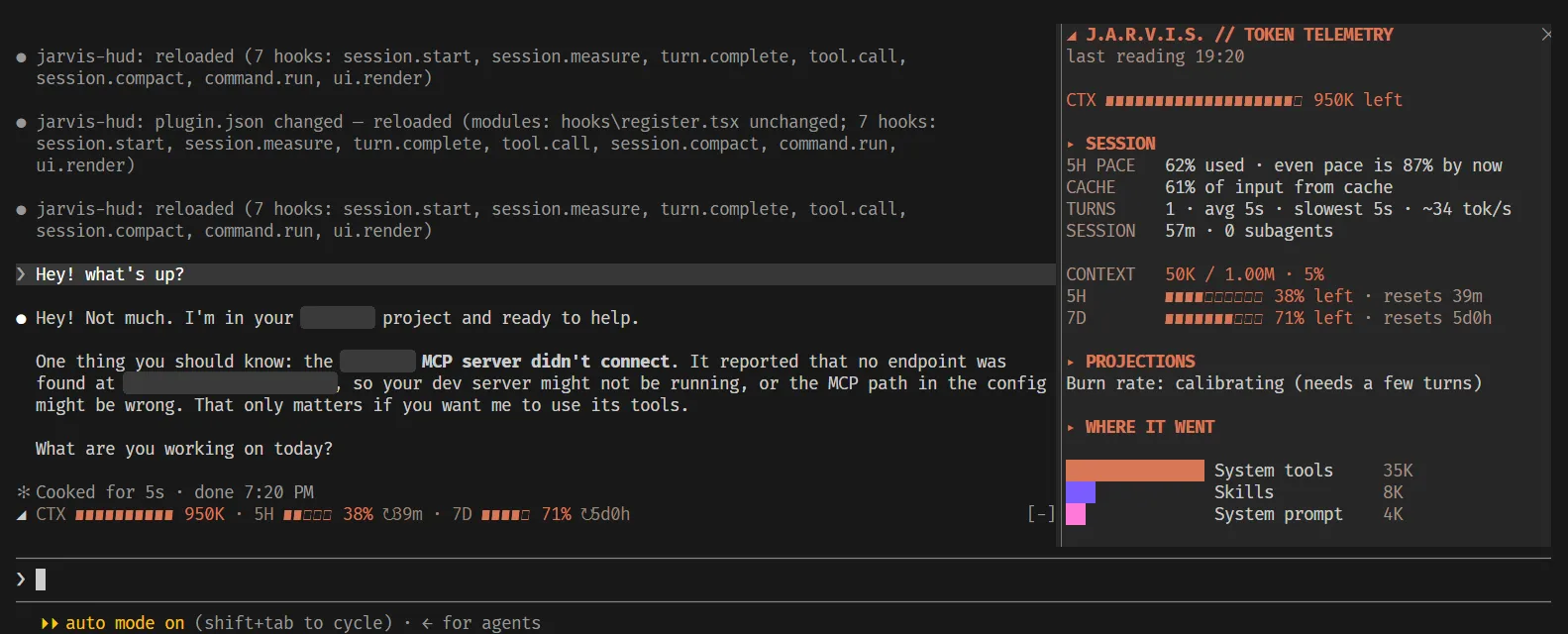
The Code tab with J.A.R.V.I.S. running: the reactor strip above the prompt, the HUD pane on the right.
The strip above your prompt
The reactor strip sits just above the box where you type, so it’s in view every time you send a message. It stretches to the width of the chat column and turns from orange to amber to red as your context fills.

The reactor strip: context left and a turns-left forecast on the left, both plan quotas on the right.
Hover over any part for exact numbers. Over the reactor you get used and remaining tokens, the auto-compact point and your burn rate per turn. Over a quota you get the percentage used and the time to its reset. Click the ◢ just to its left to open the pane.
The HUD pane beside your chat
The pane opens docked on the right, next to the conversation. It updates live after every reply, so you can keep it open while you work and glance at it between turns.
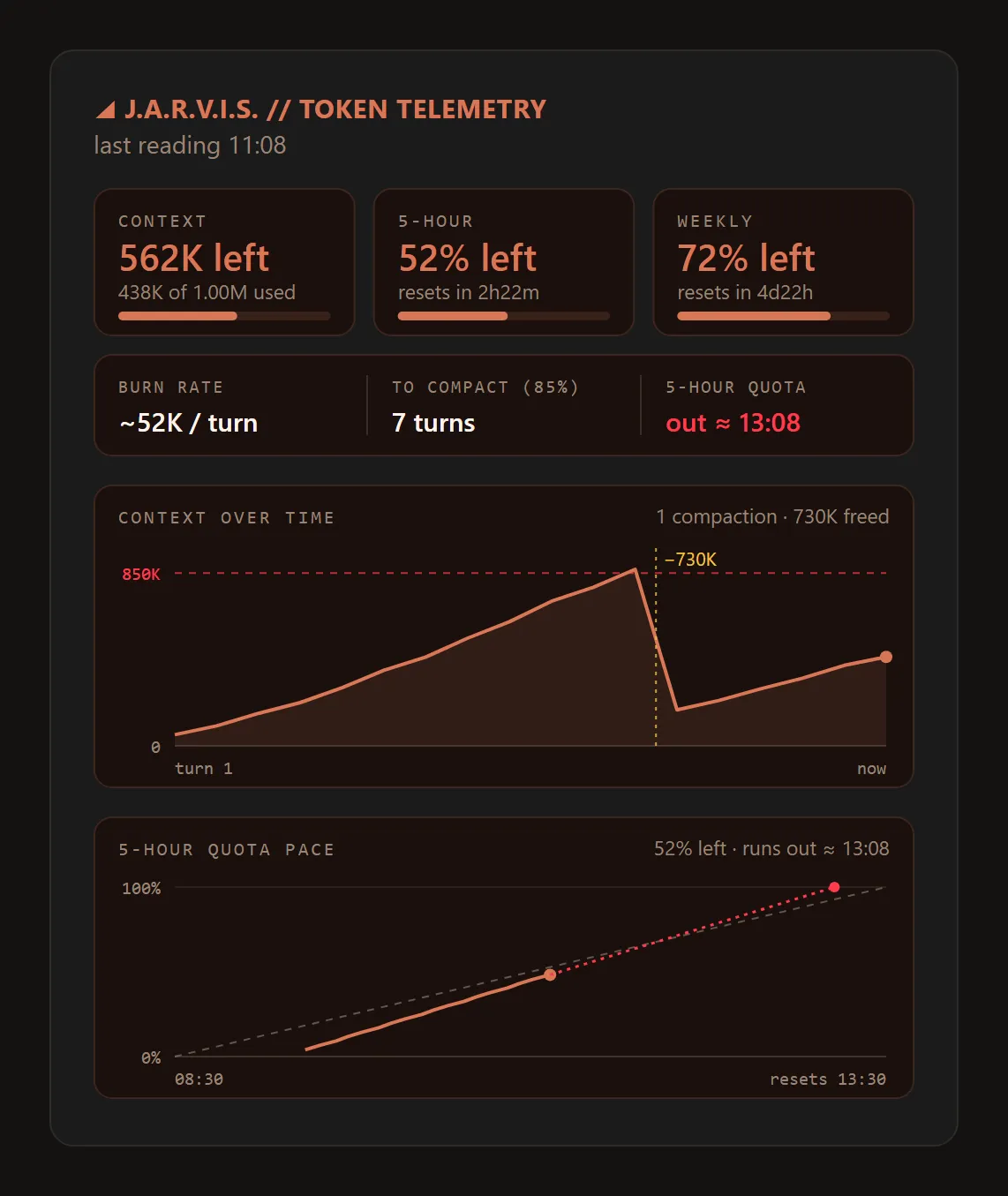
The HUD pane: readout cards, forecast row, context over time and 5-hour quota pace.
Scroll down for the efficiency cards, the donut of what’s filling your context, and the tools and files that put the most into it.
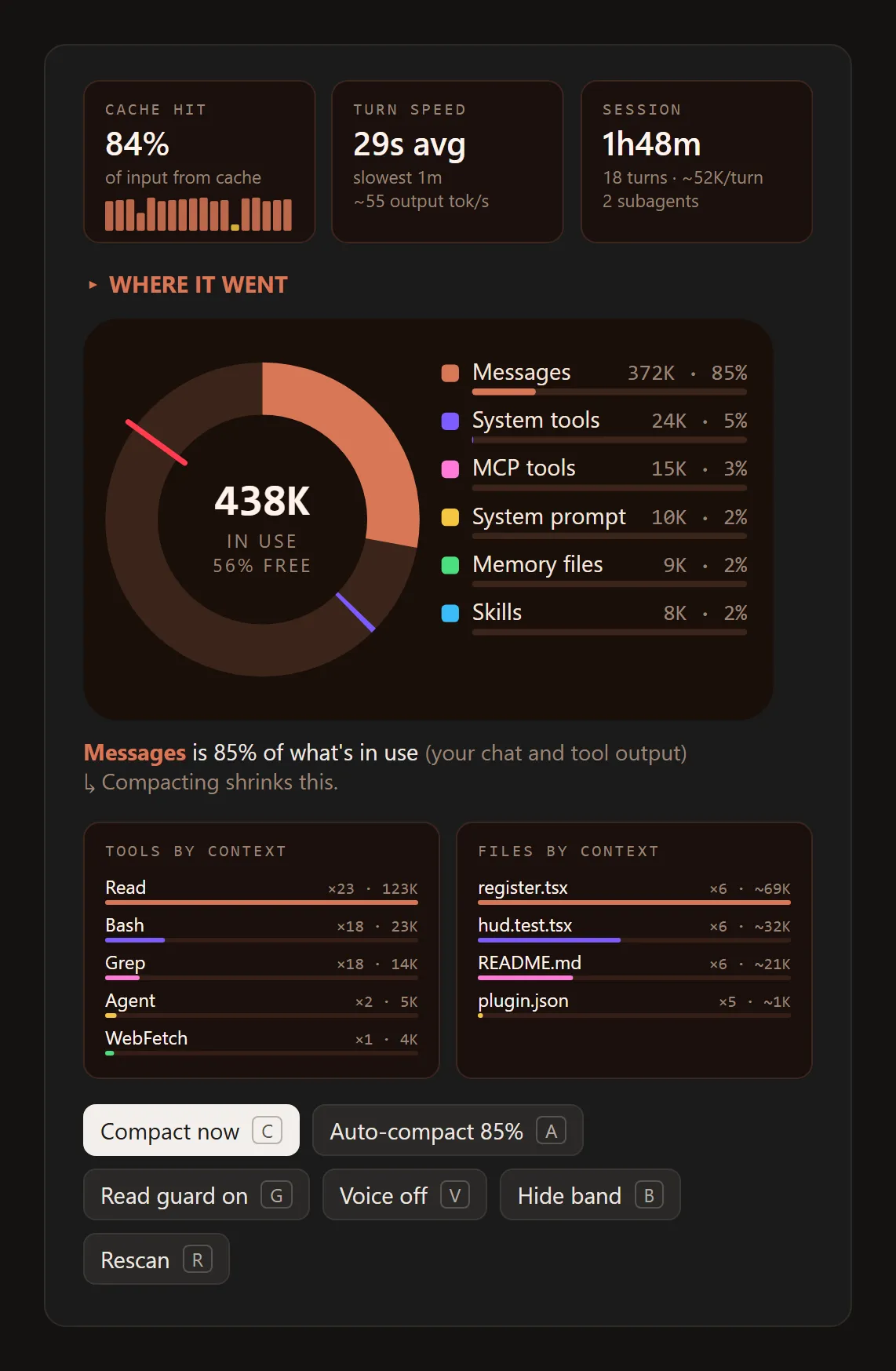
Cache hit rate, turn speed and the tools and files that used the most context.
The buttons at the bottom work by click or by hotkey once the pane has focus. They let you compact now, change the auto-compact threshold or turn the read guard off without typing a command.
How it works under the hood
The whole mod is one file, hooks/register.tsx, built on Claude Code’s mod API. It subscribes to a handful of events, keeps its numbers in a small shared state, and redraws the display whenever that state changes.
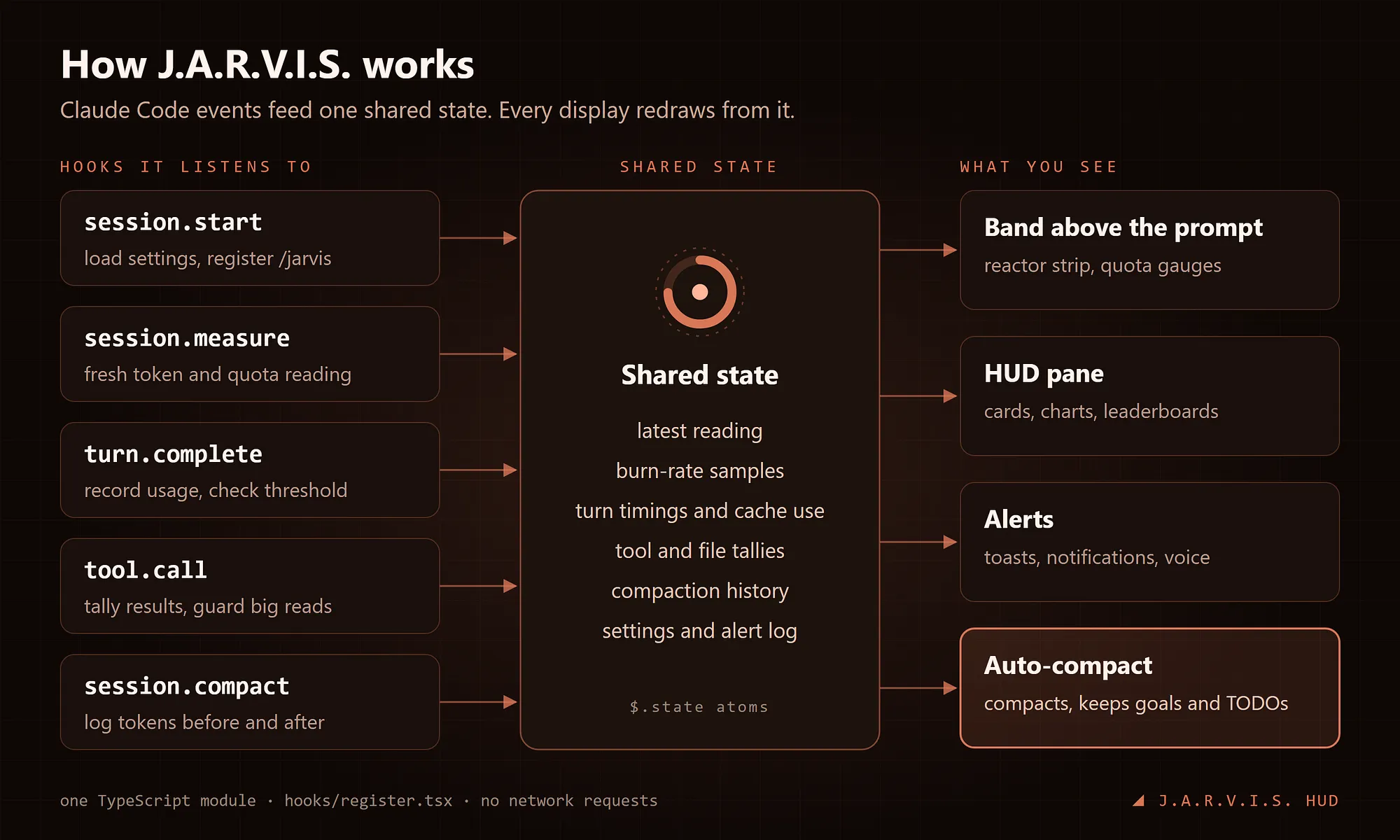
session.startloads your saved settings, registers the/jarviscommand, notes when the session began, takes a first reading fromsession.usage()and opens the pane.session.measurefires with fresh token and quota numbers. J.A.R.V.I.S. stores them and checks the alert thresholds.turn.completerecords each turn’s duration and token usage, including prompt-cache reads, and keeps recent context readings for the burn rate and the timeline. If context is past the threshold and the turn ended with an answer, it schedules a compaction.tool.callruns twice. Before a Read, it checks the file’s size and warns if the read would use more than 8% of what’s left. After every call, it tallies how much the result put into the context, by tool and by file.session.compactrecords every compaction of the main conversation, whoever started it, with its tokens before and after.ui.renderdraws the band above the prompt and the HUD pane. Every chart, card and gauge is SVG generated in code, sized to the space it’s drawn in, so there are no image files.
Settings persist through the mod’s own store, so they carry over between sessions. A 30-second clock tick keeps the reset countdowns current.
How to install it
Installing takes about two minutes and works the same on Windows and macOS.
Step 1: Check your Claude Code version
Open a terminal (PowerShell on Windows, Terminal on macOS) and run:
claude --versionYou need a version with mod support. I tested on 2.1.286. If yours is older, update Claude Code first.
You also need Git, because Claude Code fetches the mod from GitHub. The repository is public, so you don’t need a GitHub account or login.
Step 2: Add the J.A.R.V.I.S. marketplace
This tells Claude Code where to find the mod:
claude plugin marketplace add JarvisStriker/jarvis-hudStep 3: Install the mod
claude plugin install jarvis-hud@jarvis-hudIt installs for your user account, so it loads in every new session, both in the terminal and in the desktop app’s Code tab.
Step 4: Start a new session
Close any open Claude Code sessions and start a new one with claude. The band appears above the prompt straight away:
◢ JARVIS online · 200K context window · gauges light up after the first replyStep 5: Check that it works
Send any prompt. When the reply arrives, the gauges fill in. Then run /jarvis status for a full briefing, or /jarvis to open the HUD pane.
Prefer the desktop app?
- Click + next to the prompt box.
- Choose Plugins → Add marketplace.
- Enter
JarvisStriker/jarvis-hud. - Click Add plugin next to jarvis-hud.
- Start a new session in the Code tab.
Already inside Claude Code?
Run the same two steps as slash commands:
/plugin marketplace add JarvisStriker/jarvis-hud
/plugin install jarvis-hud@jarvis-hud
Updating and uninstalling
To update to the latest version:
claude plugin marketplace update jarvis-hud
claude plugin update jarvis-hud@jarvis-hud
Then restart Claude Code, or run /reload-plugins in an open session.
If you installed by cloning the repo (see Want to hack on it? below), update with git pull in that folder instead. The claude plugin … update commands only know about marketplace installs, so for a folder install they report the plugin as not found.
To remove it:
claude plugin uninstall jarvis-hud@jarvis-hud
claude plugin marketplace remove jarvis-hud
Not seeing the band?
- Make sure you started a new session after installing.
- Run
claude plugin listand check thatjarvis-hudis listed and enabled. - If
/jarvisopens a file path in Git Bash on Windows, type it inside Claude Code, not at the shell prompt. - No reactor strip in the desktop app? It appears after the first reply. Until then, the band shows the “JARVIS online” line.
Want to hack on it?
Clone the repo into ~/.claude/mods/jarvis-hud and point CLAUDE_CODE_PLUGIN_DIRS at it in ~/.claude/settings.json. Changes reload automatically in interactive sessions.
Making it yours
Everything is controlled with /jarvis, and your settings carry over between sessions.
/jarvisopens the HUD pane./jarvis statusprints a text briefing: context, burn rate, quotas and settings./jarvis compactcompacts the conversation now./jarvis auto on|off|<30-98>turns auto-compact on or off, or sets its threshold. It’s on at 85% by default./jarvis guard on|offwarns before large file reads. On by default./jarvis voice on|offspeaks alerts aloud on macOS. Off by default./jarvis band on|offshows or hides the band. On by default.
When the pane has focus, its buttons also have hotkeys: c compact, a auto-compact, g read guard, v voice, b band, r rescan.
A few things to know:
- Plan quotas only show on a Claude subscription (Pro or Max). With an API key you see context only.
- In a terminal, the pane opens by itself only when the window is at least 144 columns wide. Otherwise, type
/jarvis.
Why I built it, and what’s next
Running out of context should never be a surprise. Claude Code already tracks all these numbers, but they’re scattered across separate commands. J.A.R.V.I.S. pulls them into one display that’s always visible, and steps in before you run out.
The surprise was how little code it took. Claude Code’s mod API hands you the events, the measurements and the UI pieces. The rest is about 1,300 lines of TypeScript and a sense of style.
The code is on GitHub at JarvisStriker/jarvis-hud. Try it, open an issue, or tell me which gauge you’d add next.
“Sometimes you gotta run before you can walk.” Just don’t run out of tokens while you’re at it.